


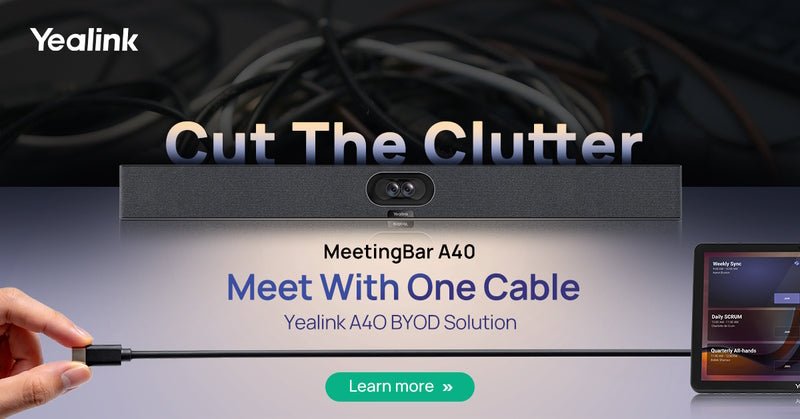
Many meeting rooms today need to support different video platforms and flexible workflows. Instead of relying on one dedicated room system, users often bring their own laptop and run meetings directly from their device.
What Is a BYOD Meeting Room?
BYOD stands for Bring Your Own Device. In a meeting room, it means users connect their own laptop to the room’s video and audio equipment, then start the meeting from the app they already use.
This can be helpful for teams using Zoom, Microsoft Teams, Google Meet, Webex, or a mix of different platforms. The challenge is that while BYOD adds flexibility, it can also make the room setup more complicated if there are too many separate devices and cables.
When Does a BYOD Setup Make Sense?
BYOD is useful when a meeting room needs flexibility rather than being tied to a single platform or system.
- Multiple platforms are used. Teams, Zoom, Google Meet, Webex, or a mix depending on the meeting.
- Guests or external users are common. Visitors can run meetings from their own laptop.
- The room is shared. Different teams may have different workflows.
- A native room system is not available or not necessary. Some spaces do not require a full dedicated room system.
- Cost or complexity is a concern. A simpler setup may be more practical for smaller or lower-use rooms.
If your organization is fully standardized on a single platform such as Microsoft Teams Rooms or Zoom Rooms, a native system may still be the better option. BYOD offers more flexibility, while native room systems provide a more standardized, one-touch meeting experience.
How BYOD Meeting Rooms Are Typically Set Up
In many cases, a BYOD meeting room is built using separate components that are connected together. This can include individual USB devices, existing AV equipment, laptop docks, adapter kits, or dedicated BYOD interface boxes.
- USB camera for video
- Speakerphone or microphone for audio
- HDMI cable for screen sharing
- USB cable for camera and audio connection
- Adapters, docking stations, or BYOD interface devices for different room setups

Example of a typical BYOD meeting room setup with multiple cables and devices.
This approach can work well, especially when reusing existing equipment, supporting larger rooms, or building around a more specialized AV setup. The tradeoff is that it usually involves more components, more cables, and more user instructions.
In practice, many BYOD rooms end up with loose cables on the table or require users to switch inputs, reconnect devices, or troubleshoot before the meeting starts.
For shared rooms, that can lead to an inconsistent experience from one meeting to the next, depending on who is setting up the meeting and how familiar they are with the equipment.
How Yealink MeetingBars Simplify BYOD Meetings
This is where all-in-one solutions like Yealink MeetingBars can help simplify the experience.
Yealink MeetingBars are designed to bring the main meeting room components into a single device. Instead of managing separate camera, microphone, and speaker units, these are integrated into one system.
For BYOD use, the goal is to reduce the number of connections and create a more consistent experience for users. Users connect their laptop and gain access to the room’s video, audio, and display without needing to manage multiple devices.
This can help reduce setup confusion, improve reliability, and create a cleaner meeting room environment, especially in shared spaces.
Where the Yealink A40 Fits Best
The Yealink MeetingBar A40 with CTP25 is a strong option for small to medium meeting rooms that want a simpler BYOD experience.
It works well in rooms where users frequently switch between platforms or where ease of use is important for everyday meetings.
For teams that want a cleaner room setup without moving fully into a dedicated native room system, the A40 can be a practical middle ground.

If your room may need more coverage or flexibility over time, you can also read our guide on expanding the Yealink A40 for larger or more complex meeting rooms .
What About Other Yealink MeetingBar Options?
While the A40 is a good fit for flexible BYOD rooms, other MeetingBar models may be better suited depending on room size and platform requirements.
- A10: Smaller huddle spaces
- A25 / A30: Small to medium rooms, often used with native Teams or Zoom setups
- A40: Flexible BYOD rooms with a focus on simpler setup
- A50: Larger rooms or more advanced requirements
If you are comparing models, our Yealink MeetingBar comparison guide provides a more detailed breakdown.
You can also browse our Yealink MeetingBar collection or visit the Yealink video conferencing systems hub for more options.
Need Help Choosing the Right Setup?
Choosing the right meeting room solution depends on your room size, preferred platform, existing equipment, budget, and how the space is used.
If you are planning a new meeting room or comparing options, we can help you find the best fit.
You can also email us at sales@thetelecomspot.com or call us at 866-369-3394 with any questions.
Common Questions About BYOD and the A40
What does BYOD mean in a meeting room?
BYOD stands for Bring Your Own Device. It means users connect their own laptop to the room and run meetings using their preferred video conferencing application.
Does the A40 work with Zoom, Microsoft Teams, and Google Meet?
Yes. In BYOD mode, it works with the platform running on the user’s laptop, including Zoom, Microsoft Teams, Google Meet, Webex, and others.
Is BYOD better than a native room system?
It depends on your needs. BYOD is more flexible for mixed-platform environments, while native room systems are often better for companies standardized on one platform.
Can I use existing AV equipment for BYOD?
In some cases, yes. Existing cameras, microphones, displays, docks, or USB devices can be used for BYOD rooms, but the setup may require more cables and user instructions.
If you’re working with existing equipment and not sure what will work best, we’re happy to take a look and help you figure out the right approach.
Is the A40 suitable for larger conference rooms?
The A40 is typically best for small to medium rooms. Larger rooms may require additional hardware or a different Yealink solution.