


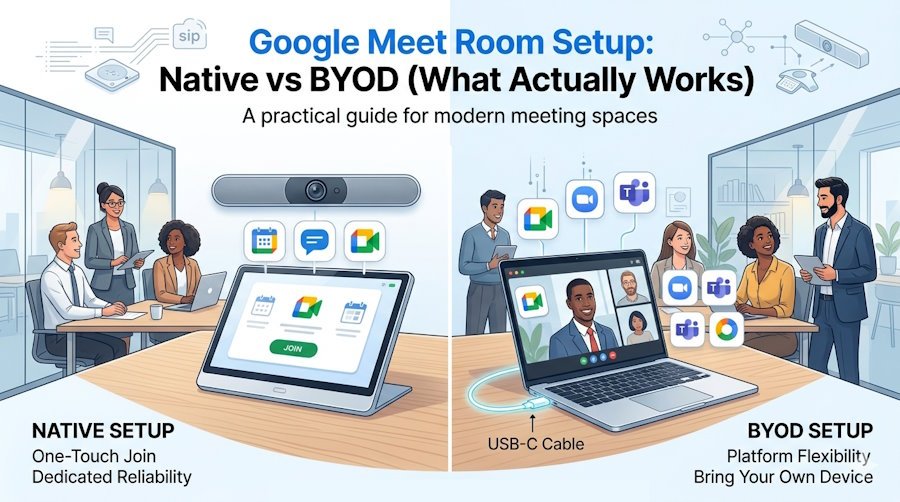
Google Meet Room Setup: Native vs BYOD (Which One Should You Choose?)
Setting up a Google Meet room should be as easy as opening a laptop. But if you’ve ever spent the first ten minutes of a meeting crawling under a table looking for the right cable, you know that’s rarely the case.
Today’s meeting rooms are not just about video quality. They need to balance:
- "It just works" simplicity (Walk in, tap to join).
- Flexibility (The ability to join any meeting platform when a guest sends a link).
This guide breaks down native Google Meet rooms, BYOD setups, and the "hybrid" hardware options that bridge the gap so you can choose the right setup without guessing.
Not All “Google Meet Compatible” Systems Work the Same Way
When you see a device labeled “Google Meet compatible,” it can mean very different things:

- Native Appliance: Runs Google Meet directly on the hardware. No laptop needed.
- PC-Based Kit: Runs Google Meet via a dedicated "compute" (Chromebox or dedicated Windows-based mini PC built specifically for meeting room systems) hidden behind the display.
- BYOD (Bring Your Own Device): The room provides the camera, microphone, and speakers, while your laptop runs the meeting.
The 2026 "Future-Proof" Reality: Many modern video bars from Poly and Logitech can be configured for different platforms (Google Meet, Zoom, or Microsoft Teams). However, they are typically set to run one platform at a time based on how the system is deployed and managed.
1. Native Google Meet Rooms: The One-Touch Experience
In a native room, Google Meet runs directly on the device as the room’s primary meeting platform. You walk in, tap "Join" on the touch controller, and you're live.
The Peer Take: This is the most reliable setup for Google-first companies. Because the system is a dedicated appliance, it’s always on and doesn't compete with laptop background apps or system updates.
Current 2026+ Native Recommendations:
- Small Rooms: Poly Studio X32 paired with a TC10 Controller.
- Medium Rooms: Poly Studio X52 + TC10 or Logitech Rally Bar.
- Large Rooms: Poly Studio X72 + TC10.
Note: These systems can be configured for Google Meet, but setup, licensing, and admin provisioning determine which platform runs natively.
Critical Lifecycle Note: While the older Poly X30 was a staple, it reaches "End of Life" status for Google Meet in July 2026. For new installations, we recommend the X32 to ensure years of supported firmware updates.
2. Hybrid Rooms: The Flexible Multi-Platform Solution
If your team jumps between Google Meet, Zoom, and Teams, a Hybrid Setup is the hero. These systems provide a high-end room experience with the "safety net" of a BYOD (Bring Your Own Device) connection.
Top Hybrid Recommendations by Room Size
| Room Size | Yealink (Best for All-in-One) | Logitech (Best for Ease-of-Use) | Poly (Best for Audio/Video) |
|---|---|---|---|
|
Small (Up to 6 people) |
A40 + CTP25 | Rally Bar Mini | Studio X32 + TC10 |
|
Medium (Up to 12 people) |
A40 + CTP25 (Expandable for larger rooms) |
Rally Bar | Studio X52 + TC10 |
|
Large (12+ people) |
A50 + CTP25 (Best for Wide Rooms) |
Rally Plus (Modular System) |
Studio X72 + TC10 |
*Capacity estimates assume a standard room depth. For exceptionally long "bowling alley" style rooms, we recommend moving up one size to ensure microphone coverage.
Why the Yealink A40? While designed as a mid-sized bar, its premium optics make it a favorite for high-profile executive huddle spaces where video clarity is a priority.
Why the Yealink A50? For large boardrooms that are wide rather than deep, the A50’s dual-camera system excels at capturing people at the far ends of the table without "fish-eye" distortion.
Pro Tip: The "One-Cable" Charging Advantage
In 2026, the biggest differentiator is how your laptop gets power during a BYOD meeting:
- Yealink A40/A50: The CTP25 touch panel features a built-in 65W PD charger. One cable connects you to the room's AV and charges your laptop simultaneously.
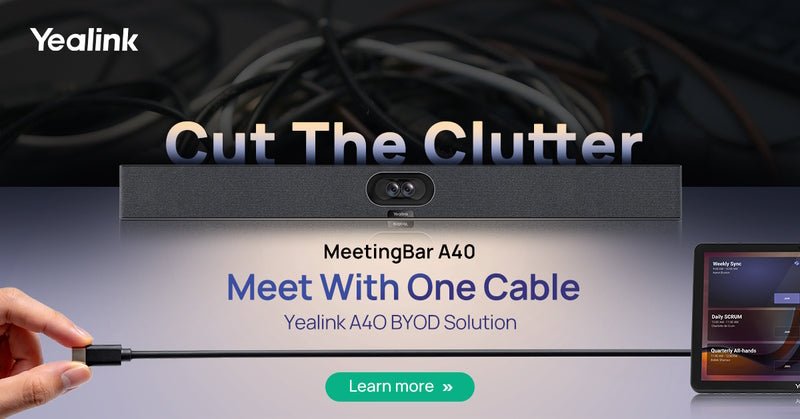
Visual proof: The Yealink CTP25 controller handles both your room AV connection and 65W laptop charging via a single cable.
- Logitech Rally Bar: Can deliver up to 100W Power Delivery when using the Logitech Active Link (paired with a 100W power supply, often sold separately).
- Poly Studio X Series: Supports professional BYOD via "Device Mode" activated on the TC10 Controller. Note: Because the TC10 is PoE-powered, it does not provide laptop charging. You will need a separate laptop power adapter or a USB-C PD injector to maintain battery life.
Which Setup Is Right for You?
| If your situation looks like this... | What works best |
|---|---|
| You want "Walk-in-and-Join" simplicity for Google Meet | Native Appliance (Poly X32 + TC10, X52 + TC10, or Logitech Rally Bar) |
| You jump between Google Meet, Zoom, and Teams daily | Hybrid setup (Yealink A40 with CTP25 for integrated charging) |
| You have a large boardroom requiring table mics | Modular/Expandable (Logitech Rally Plus for mic flexibility or Poly X72 for a clean "All-in-One" bar look) |
Final Thoughts
Most meeting room frustrations aren't caused by the hardware brand—they come from a lack of a clear "cable plan." Whether you choose Native for simplicity or Hybrid for flexibility, ensuring your gear supports features like USB-C Power Delivery and current 2026 hardware standards will save your team hours of troubleshooting.
Not sure which setup fits your space? We help businesses design meeting rooms that actually work.
Contact us for a quick recommendation or quote:
📧 sales@thetelecomspot.com
📞 866-369-3394